
How to Make a Background Transparent for Free
To make a background transparent, use the tool that matches what is behind your subject. A logo or graphic on white needs a tool that removes one flat colour cleanly. A signature on paper needs one that copes with uneven light. A photo of a person or a product needs an AI model that understands where the subject ends. Choosing the right one is most of the job; the rest is saving the result as PNG.
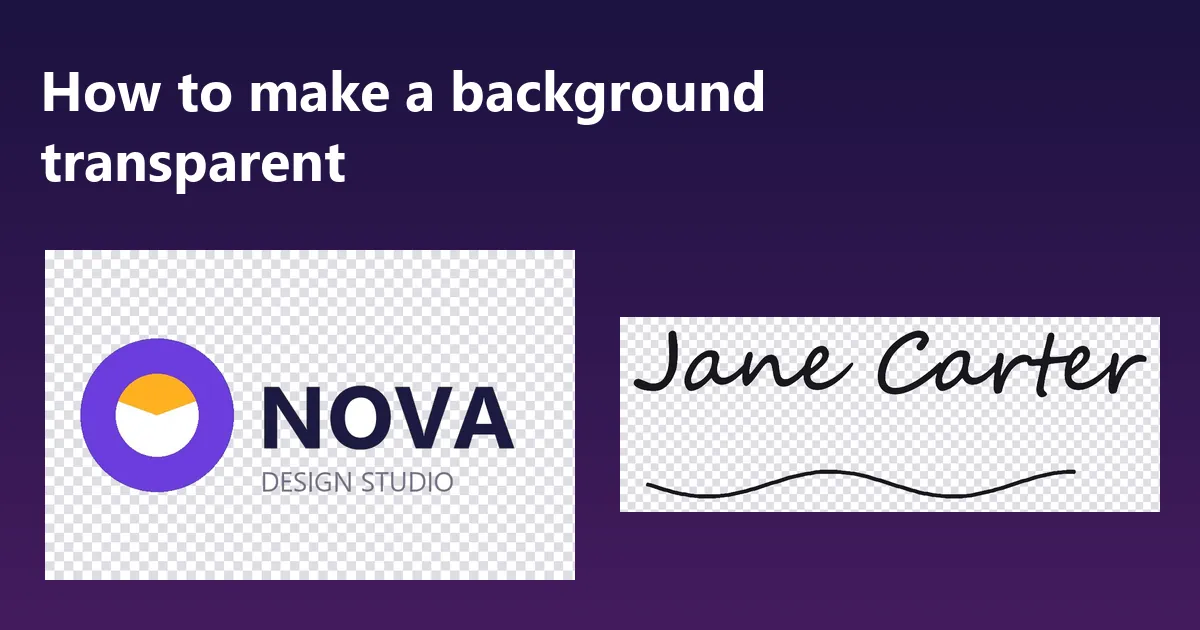
The short answer
- Logo, icon, clip art or screenshot on white: Make Background Transparent.
- A signature on paper: the Signature Extractor.
- A person, pet or product in a real scene: the Background Remover.
- Green screen: the Chroma Key Remover.
- Save as PNG or WebP. JPG cannot be transparent.
Which tool should you use for your image?
| What is behind the subject | Tool | Why this one |
|---|---|---|
| A plain white or single-colour box (logo, icon, clip art, screenshot) | Make Background Transparent | Removes one flat colour from the edges inwards and keeps the white inside the design |
| Paper, with a signature or handwriting on it | Signature Extractor | Copes with shadows and uneven light across the page |
| A real scene: a room, a street, a table | Background Remover | An AI model finds where a person, pet or product ends |
| A green or blue screen | Chroma Key Remover | Keys out the screen colour, including spill on the edges |
Whichever you use, the download is a PNG, which keeps the transparent pixels. The sections below explain each case and the edge problems to watch for.
What a transparent background is
Every pixel in a PNG or WebP can carry a fourth value besides red, green and blue: alpha, how opaque it is. Alpha 255 is solid, 0 is fully see-through, and the values in between let edges blend smoothly into whatever is placed behind. A "transparent background" just means the background pixels have alpha 0. Image editors show them as a grey and white checkerboard, because there is nothing there to show.
JPEG has no alpha channel. That one fact explains most "my transparent image has a white background" problems, and it is covered in depth in the guide to transparent images.
Logos and graphics on white
A logo on a white box is the most common case, and the easiest to get perfectly right, because the background really is one colour. Open Make Background Transparent and add the file. It reads the background colour from the border of the image and fills inwards from the edges, stopping at the outline of the design.
That last part matters. A simple "remove white" tool also deletes the white inside the design: the counter of an O, a white highlight, the white of an icon. Filling from the edges keeps them. When you do want those holes cleared, for lettering on a coloured background, choose That colour everywhere.
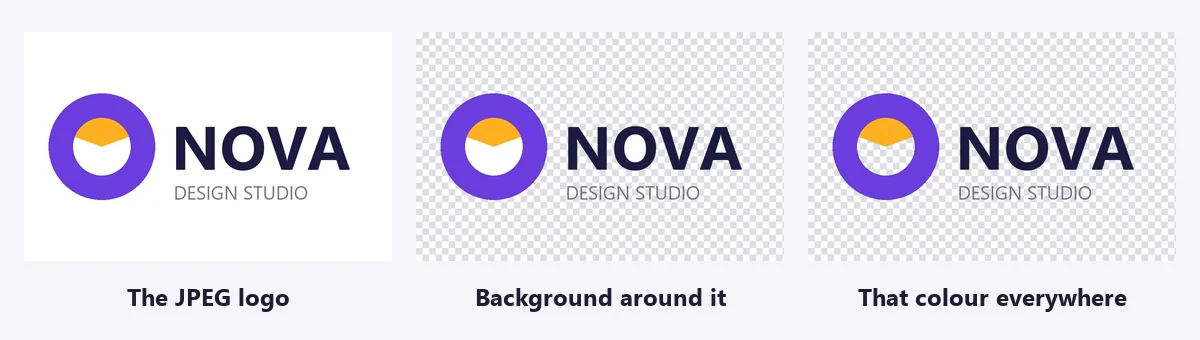
Logos saved as JPEG have faint blotches around their edges, because JPEG compression smears flat colour. If a pale outline of the old box remains, raise the Tolerance a little until it disappears. Start low; a very high tolerance starts eating into light parts of the logo.

A signature on paper
A signature looks like the same problem, dark marks on white, but a phone photo of paper is never one colour. The light falls off towards one corner, your hand or phone casts a shadow, and a warm lamp tints the page. A single colour threshold either leaves grey smudges in the darker corner or eats the thin strokes in the brighter one.
The Signature Extractor measures the brightness of the paper across the whole page and compares each stroke with the paper right around it. Sign plain white paper with a dark pen, take a photo from straight above in good light, and open it. The paper goes, the specks of paper texture go, and the result is cropped close to the ink.
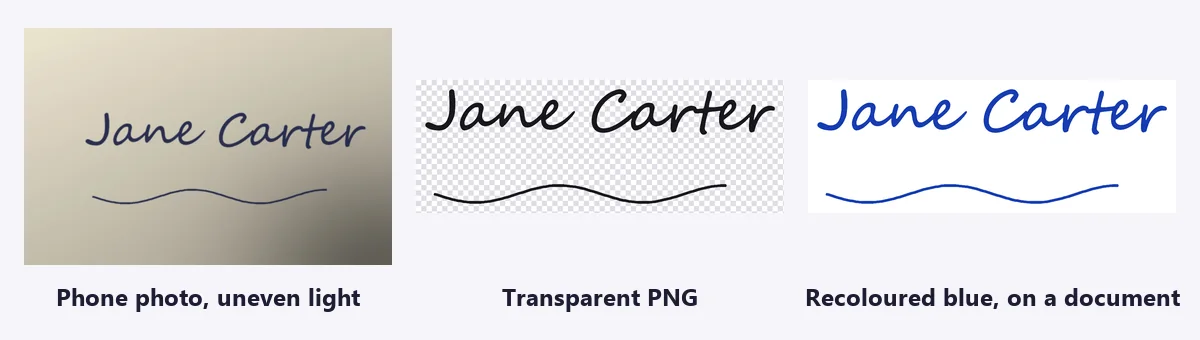
- Strokes missing? Raise Ink sensitivity, or photograph it again with a darker pen.
- Paper texture showing? Lower Ink sensitivity and keep Remove specks ticked.
- Printing it small? Choose Bolder line weight so thin strokes survive.
A picture of your signature pasted into a document is not a secure digital signature. It is fine for an email footer or an informal letter; for a contract, use the signing step of an e-signature service, which records who signed and when.
Photos of people and products
When the background is a room, a street or a table, no colour rule can separate it from the subject: the same colours appear in both. This is the job for an AI segmentation model. The Background Remover runs one in your browser, on your own device, so the photo is not uploaded. Choose Best edges for hair, fur and product edges.
The cleanest results come from photos where the subject stands out from what is behind it: a person in front of a plain wall cuts out better than a person in front of a bookshelf. For a product shot with a studio backdrop and a soft shadow ready for a marketplace, the Product Photo Studio does the cut-out and the backdrop in one step.
Avoiding the white halo
Put a logo cut from white onto a dark page and you may see a thin pale outline. The edge pixels were half logo, half white; on white that looked right, on black it glows. Three fixes, from the easiest:
- Keep Remove the light fringe ticked in Make Background Transparent. It works out how much of each edge pixel was background and takes that colour back out.
- Add one or two steps of Edge smoothing, which also pulls the edge in by a fraction of a pixel.
- If you have the original artwork, export it again with a transparent background from the program it was made in. That is always the cleanest edge there is.
Saving it so it stays transparent
- Download as PNG (or WebP for a website, at a fraction of the size). Never JPG.
- Check where it is going. Some upload forms, email clients and older apps flatten transparency to white or black. Office apps, Canva, Figma and websites keep it.
- Need a solid colour after all? The Transparency & Opacity tool flattens a transparent PNG onto any colour you choose.
- File too big? Convert to WebP with the Image Converter; it keeps the transparency.
Can a GIF have a transparent background?
Yes, but only an all-or-nothing one. A GIF can mark one colour of its palette as transparent, and every pixel of that colour shows whatever is behind the image (GIF89a specification, the transparency index). There are no half-transparent pixels, so the soft, blended edge of a cut-out becomes a hard, stepped one, and a logo cut from white keeps a ring of pale pixels on a dark page. For a still image, use PNG or WebP instead: both keep the smooth edge.
Animated stickers and reaction GIFs often do have transparent backgrounds. To get the frames out with that transparency intact, take the GIF apart with the GIF Frame Extractor and save the frames as PNG; JPG would turn the transparent areas white. How to extract frames from a GIF shows the result on a real transparent animation.
Frequently asked questions
How do I remove a white background from an image?
If the white is a plain box around a logo, icon or drawing, open Make Background Transparent: it reads the background colour from the border and clears it up to the outline of the design, keeping white inside the design. If the white is paper with a signature or handwriting on it, use the Signature Extractor. Download the result as PNG; a JPG would put the white straight back.
How do I make the background of an image transparent for free?
Pick the tool by what is behind the subject. For a logo, icon or graphic on white or a flat colour, use Make Background Transparent. For a signature on paper, use the Signature Extractor. For a photo of a person, pet or product, use the Background Remover. All three are free, run in your browser and save a transparent PNG.
Why does my transparent PNG show a white background?
Either it was saved or converted to JPG, which cannot store transparency, or the app you are viewing it in draws a white background behind transparent images. Open it somewhere that shows a checkerboard, and keep the file as PNG or WebP.
How do I get rid of the white edge around a cut-out logo?
The edge pixels are partly background. Remove the light fringe, in Make Background Transparent, takes the background colour back out of them, and Edge smoothing at 1 or 2 trims what is left. Cutting from a background close to the final one also helps.
Can I make a background transparent on iPhone or Android?
Yes. Open the tool in Safari or Chrome on the phone, choose the picture from your photos and download the PNG. On iPhone it goes to the Files app, from where you can share it to Photos; on Android it goes to Downloads.
Does making a background transparent reduce quality?
No. The subject keeps every pixel at its original resolution; only the background pixels become see-through. The PNG file is usually larger than the original JPEG, because PNG is lossless.
Can I use these tools on someone else's logo?
Only if you have permission. Removing a background does not change who owns the logo or artwork, and the ImgVX AI Acceptable Use Policy does not allow using the tools to infringe copyright or trademarks.
Make yours transparent
Free, in your browser, with no watermark. Your image stays on your device.